How to get data from websites (fast)
So far in this blog, we’ve tried to answer questions by creating “fake” artificial data, and finding patterns in it. That’s fun and all, but sometimes we just need data from the real world. Take for example the simple question:
Which are the 10 most densely populated countries?
In this post we’ll focus on data collection instead of analysis. As long as the data is accessible and somewhat structured in a webpage, we’ll see how to extract it for further processing and analysis - without tedious copy-pasting but with a code-based process called web scraping.
Although there are many web scraping tutorials out there, I want a basis for future posts that is up to my standards. So here’s my take on a tutorial for the simplest form of web scraping.
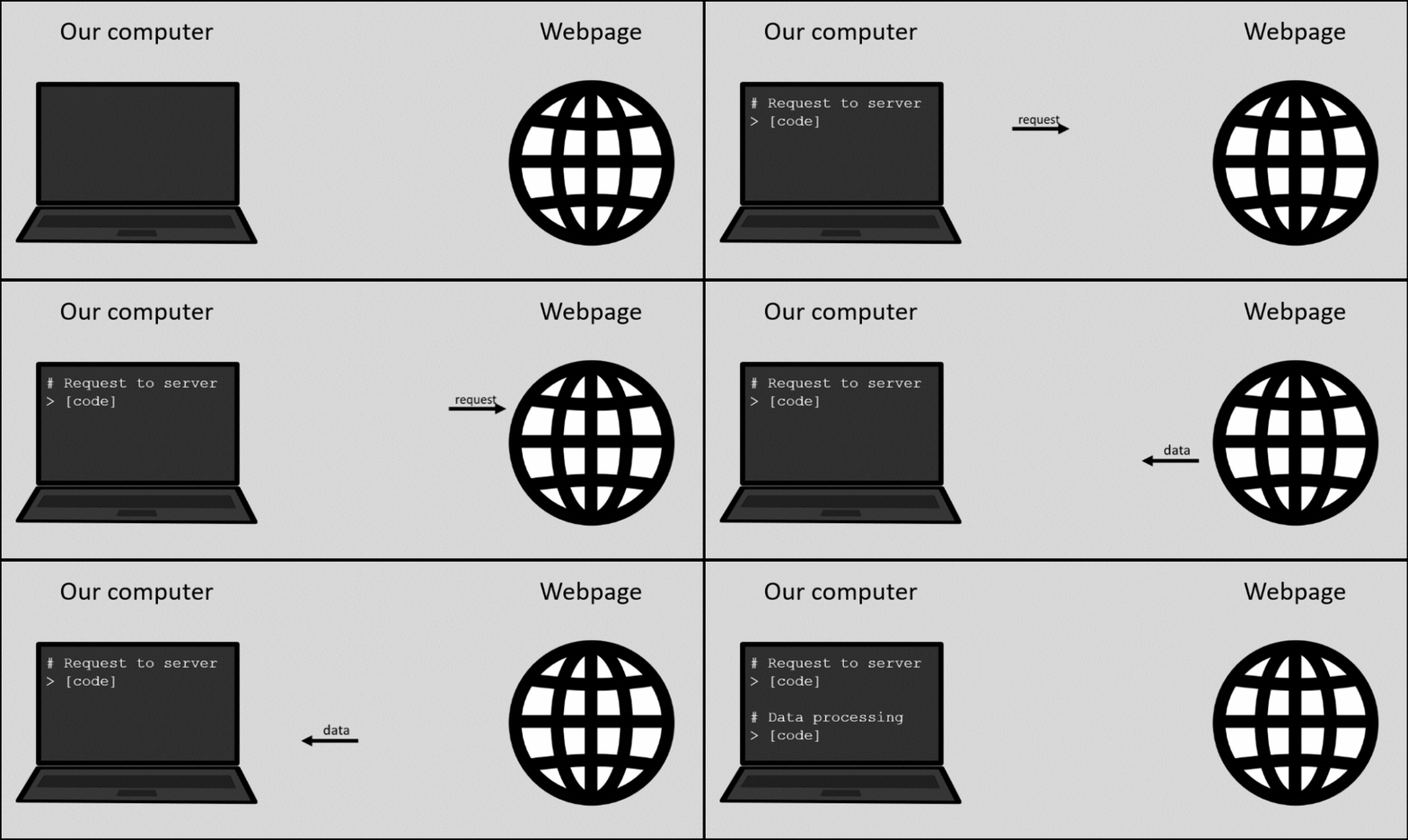
Figure 1: Web scraping procedure. Our code sends a request to the web server and processes the incoming data appropriately.
On a side note, some websites don’t like this practice and actually take measures against it (as is their right). This blog post only concerns the technical aspect of scraping publicly available information, not the legal or ethical ones. There are resources out there with points to consider, here’s one example.
That said, there’s information for our question on a website that openly welcomes scraping: scrapethissite.com
Page to scrape (link)
The website’s very first exercise is titled Countries of the World: A Simple Example and contains information on 250 countries/territories (referred to as “countries” from now on). It features the following information on each country:
-
Country name
-
Capital
-
Population
-
Area in km2
Note: The information on the webpage may be outdated or inaccurate. This is not important for this exercise.
For our purpose, population density can be calculated as the fraction \(\frac{population}{area}\). Before any calculation though, our main focus should be to take the information in this webpage…
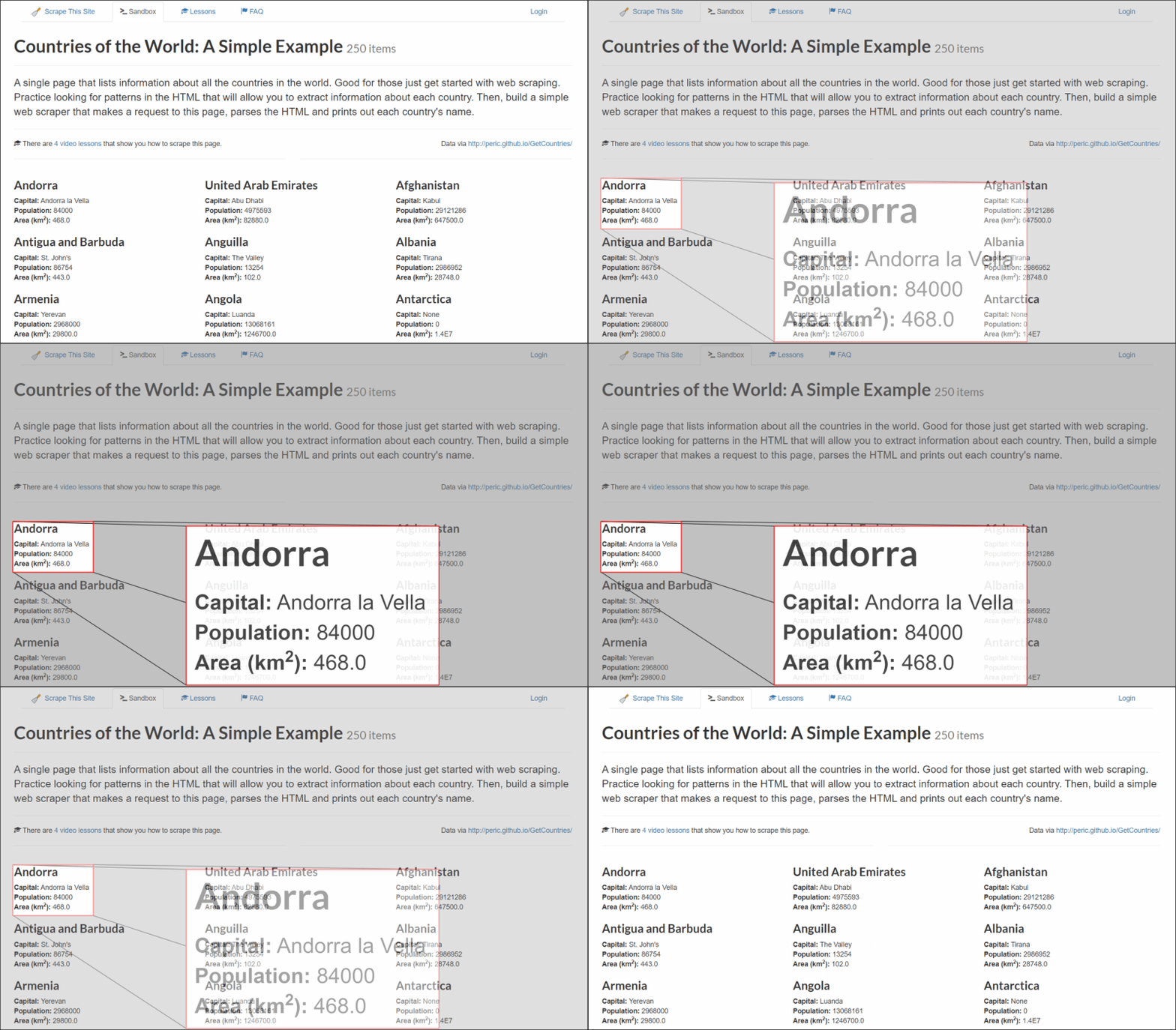
Figure 2: Layout of "Countries of the World" webpage and each country section.
…and turn it into something like this:
| Country | Capital | Population | Area (km2) |
|---|---|---|---|
| Andorra | Andorra la Vella | 84 000 | 468.0 |
| United Arab Emirates | Abu Dhabi | 4 975 593 | 82 880.0 |
| Afghanistan | Kabul | 29 121 286 | 647 500.0 |
| Antigua and Barbuda | St. John’s | 86 754 | 443.0 |
| … | … | … | … |
So how exactly can we do this? Let’s begin!
Step 0: Inspect HTML code
Before we extract data from the webpage, we need to know what it’s actually made of.
Our browser shows us a rendered webpage. But behind the scenes, all the information is contained and structured in HTML code.
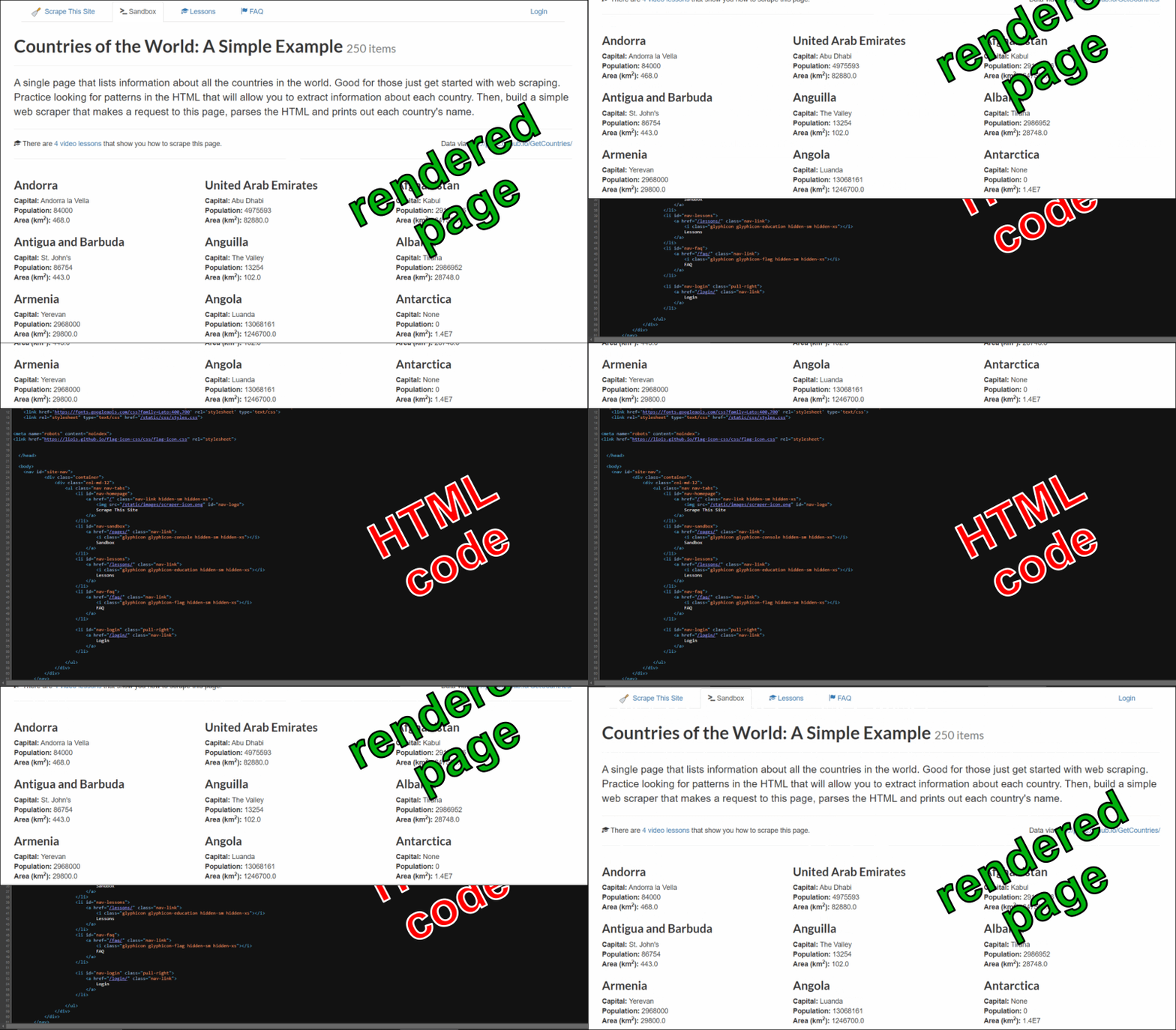
Figure 3: "Countries of the World" webpage: rendered layout and HTML code.
To see this code, right-click anywhere in the page with your favorite web browser and select “Inspect”. This opens a side panel, showing how the HTML is structured in elements, how these elements are named, and what they contain:
Video 1: Inspecting the webpage's HTML structure.
Each HTML element is of a certain type (e.g. div or section) and has attributes, most commonly class or id. For example there is an element div id="page".
This step is essential for extracting the data, so we’ll come back to it later on.
Step 1: Read page’s HTML
We’ll use the R language throughout this exercise. To start, let’s read the whole page’s HTML into our R session so we can further parse it:
# Load the rvest package, which is used to read and parse HTML
library(rvest)

# Read the webpage's HTML code
webpage_html <- read_html(x="https://www.scrapethissite.com/pages/simple/")

# Display HTML
webpage_html
## {html_document}
## <html lang="en">
##  [1] <head>\n<meta http-equiv="Content-Type" content="text/html; charset=UTF- ...
##  [2] <body>\n    <nav id="site-nav"><div class="container">\n                 ...
##  [3] <script src="https://ajax.googleapis.com/ajax/libs/jquery/1.11.3/jquery. ...
##  [4] <script src="https://maxcdn.bootstrapcdn.com/bootstrap/3.3.5/js/bootstra ...
##  [5] <script src="https://cdnjs.cloudflare.com/ajax/libs/pnotify/2.1.0/pnotif ...
##  [6] <link href="https://cdnjs.cloudflare.com/ajax/libs/pnotify/2.1.0/pnotify ...
##  [7] <script type="text/javascript">\n    \n    PNotify.prototype.options.sty ...
##  [8] <script type="text/javascript">\n    $("video").hover(function() {\n     ...
##  [9] <script>\n    (function(i,s,o,g,r,a,m){i['GoogleAnalyticsObject']=r;i[r] ...
## [10] <script>\n  !function(f,b,e,v,n,t,s){if(f.fbq)return;n=f.fbq=function(){ ...
## [11] <noscript><img height="1" width="1" style="display:none" src="https://ww ...
## [12] <script type="text/javascript">\n    /* <![CDATA[ */\n    var google_con ...
## [13] <script type="text/javascript" src="//www.googleadservices.com/pagead/co ...
## [14] <noscript>\n    <div style="display:inline;">\n    <img height="1" width ...
## [15] <script async src="https://www.googletagmanager.com/gtag/js?id=AW-950945 ...
## [16] <script>\n   window.dataLayer = window.dataLayer || [];\n   function gta ...
Code explanation
We load the R package rvest (pronounced like “harvest” with a silent h), which is used to read and parse HTML.
Its read_html function, simply requests and reads the HTML page of a given web address (x). This HTML data is stored in the webpage_html variable.
To be clear, this is the HTML code of the whole webpage. At this point it’s not really comprehensible and we can’t do much with it, because there’s a lot of clutter that we don’t really care about.
Our next step will be to selectively extract the data we want.
Step 2: Select & filter HTML
By inspecting the page, we can see that its HTML code is organized as below:
##                                                   levelName           content
## 1  html
## 2   °--body
## 3       °--div id="page"
## 4           °--section id="countries"
## 5               °--div class="container"
## 6                   ¦--div class="row" (1)                         PAGE TITLE
## 7                   ¦--div class="row" (2)                       INTRODUCTION
## 8                   ¦--div class="row" (3)                  LESSONS & SOURCES
## 9                   ¦--div class="row" (4)
## 10                  ¦   ¦--div class="col-md-4 country" (1)      COUNTRY DATA
## 11                  ¦   ¦--div class="col-md-4 country" (2)      COUNTRY DATA
## 12                  ¦   °--div class="col-md-4 country" (3)      COUNTRY DATA
## 13                  °--div class="row" (5)
## 14                      ¦--div class="col-md-4 country" (4)      COUNTRY DATA
## 15                      ¦--div class="col-md-4 country" (5)      COUNTRY DATA
## 16                      °--div class="col-md-4 country" (6)      COUNTRY DATA
The page goes on with more HTML elements div class="row", which are subdivided in elements div class="col-md-4 country". Each of these contains data on exactly one country.
To select these and only these elements from the whole page, we need to select them by their type (div) and their class (col-md-4 or country):
# Select the individual HTML elements with country data
country_elements <- html_elements(x=webpage_html,css="div.country")

# Display selected elements
country_elements
## {xml_nodeset (250)}
##  [1] <div class="col-md-4 country">\n                        <h3 class="count ...
##  [2] <div class="col-md-4 country">\n                        <h3 class="count ...
##  [3] <div class="col-md-4 country">\n                        <h3 class="count ...
##  [4] <div class="col-md-4 country">\n                        <h3 class="count ...
##  [5] <div class="col-md-4 country">\n                        <h3 class="count ...
##  [6] <div class="col-md-4 country">\n                        <h3 class="count ...
##  [7] <div class="col-md-4 country">\n                        <h3 class="count ...
##  [8] <div class="col-md-4 country">\n                        <h3 class="count ...
##  [9] <div class="col-md-4 country">\n                        <h3 class="count ...
## [10] <div class="col-md-4 country">\n                        <h3 class="count ...
## [11] <div class="col-md-4 country">\n                        <h3 class="count ...
## [12] <div class="col-md-4 country">\n                        <h3 class="count ...
## [13] <div class="col-md-4 country">\n                        <h3 class="count ...
## [14] <div class="col-md-4 country">\n                        <h3 class="count ...
## [15] <div class="col-md-4 country">\n                        <h3 class="count ...
## [16] <div class="col-md-4 country">\n                        <h3 class="count ...
## [17] <div class="col-md-4 country">\n                        <h3 class="count ...
## [18] <div class="col-md-4 country">\n                        <h3 class="count ...
## [19] <div class="col-md-4 country">\n                        <h3 class="count ...
## [20] <div class="col-md-4 country">\n                        <h3 class="count ...
## ...
Code explanation
The html_elements function selects the country elements from the whole page’s HTML (x argument) and the result is stored in the country_elements variable.
The selection is based on a CSS selector (css argument). CSS selectors are used to target specific HTML elements. To select the elements div class="col-md-4 country", we build our CSS selector as follows:
[type].[class name]
-
The type of elements we want to select is
div. -
The period (
.) means that a class name comes next. -
The elements
div class="col-md-4 country"actually belong to 2 classes,col-md-4andcountry. So we can select them in different ways:-
div.col-md-4 -
div.country -
div.col-md-4.country
We just chose the 2nd way as easiest to write.
-
More on CSS selectors here.
We’ve “captured” 250 elements, which agrees with the page’s heading - definitely a good sign! With each country HTML element at hand, we can finally extract the data we want.
Step 3: Extract data
Now let’s inspect the HTML structure within each element div class="col-md-4 country":
Video 2: Inspecting the HTML structure within each country element.
The structure within each country element looks as below:
##                                 levelName      content
## 1 div class="col-md-4 country"
## 2  ¦--h3 class="country-name"             COUNTRY NAME
## 3  °--div class="country-info"
## 4      ¦--span class="country-capital"         CAPITAL
## 5      ¦--span class="country-population"   POPULATION
## 6      °--span class="country-area"               AREA
From the country elements we have captured (country.elements variable), it’s quite straightforward to extract each country name:
# Extract the country names
country_name <- country_elements |>
  html_elements(css="h3.country-name") |>
  html_text()

# Show the first few results
head(country_name)
## [1] "\n                            \n                            Andorra\n                        "
## [2] "\n                            \n                            United Arab Emirates\n                        "
## [3] "\n                            \n                            Afghanistan\n                        "
## [4] "\n                            \n                            Antigua and Barbuda\n                        "
## [5] "\n                            \n                            Anguilla\n                        "
## [6] "\n                            \n                            Albania\n                        "
Code explanation
We store all the country names as plain text (character) in the vector country_name. Specifically, we apply the following functions to the HTML data country_elements:
-
html_elements: extracts the elementh3 class="country-name"contained in each country. -
html_text: extracts the plain text from that.
The pipe operator (|>) makes this sequence of functions a bit easier to read and understand (see more information on piped function calls).
Finally, the head function displays the first 6 elements, just so we get a glimpse of what we have.
Before and after each country name there is some undesired white space, such as \n (line change) and space characters. The code below trims these characters, “cleaning” the country names:
# Trim the undesired leading and trailing white space from the country names
library(stringi)

country_name <- stri_trim_both(str=country_name)

# Show the first few results
head(country_name)
## [1] "Andorra"              "United Arab Emirates" "Afghanistan"
## [4] "Antigua and Barbuda"  "Anguilla"             "Albania"
Code explanation
The R package stringi is used for common manipulations of text (or strings). In this case, its stri_trim_both function trims white space from both ends of the given strings.
Similarly, we can extract the rest of the country information, i.e. capital, population and area:
# Extract country capitals
capital <- country_elements |>
  html_elements(css="span.country-capital") |>
  html_text()

head(capital)
## [1] "Andorra la Vella" "Abu Dhabi"        "Kabul"            "St. John's"
## [5] "The Valley"       "Tirana"
# Extract country populations
population <- country_elements |>
  html_elements(css="span.country-population") |>
  html_text() |> as.integer()

head(population)
## [1] 84000 4975593 29121286 86754 13254 2986952
# Extract country areas
area_sq_km <- country_elements |>
  html_elements(css="span.country-area") |>
  html_text() |> as.numeric()

head(area_sq_km)
## [1] 468 82880 647500 443 102 28748
Code explanation
The as.integer and as.numeric functions convert the extracted text for population and area to numeric data (and integer in the case of population, as only integer numbers make sense for it).
We have now extracted all the data we need in exactly 4 vectors:
-
country names (
country_name) -
capitals (
capital) -
populations (
population) -
areas (
area_sq_km)
Step 4: Analyze data
We’ve practically done all the heavy lifting. Our next step is to turn these 4 vectors into columns of a data table:
# Load the data.table package
library(data.table)

# Create a table using the 4 types of extracted data as columns
country_table <- data.table(country=country_name,capital=capital,
                            population=population,area=area_sq_km)

# Display our data table
country_table
##                   country          capital population    area
##                    <char>           <char>      <int>   <num>
##   1:              Andorra Andorra la Vella      84000     468
##   2: United Arab Emirates        Abu Dhabi    4975593   82880
##   3:          Afghanistan            Kabul   29121286  647500
##   4:  Antigua and Barbuda       St. John's      86754     443
##   5:             Anguilla       The Valley      13254     102
##  ---
## 246:                Yemen            Sanaa   23495361  527970
## 247:              Mayotte        Mamoudzou     159042     374
## 248:         South Africa         Pretoria   49000000 1219912
## 249:               Zambia           Lusaka   13460305  752614
## 250:             Zimbabwe           Harare   11651858  390580
Code explanation
We first load the R package data.table, which is used for the creation and manipulation of data tables.
We then create a new table with the data.table function, inputting our extracted data (country names, capitals, populations and areas). These will be the columns of the table, so each row will correspond to a country.
Now that we have the population and area of each country neatly organized, we can calculate their population density:
# Create a new column, calculating the population density
country_table[,pop_density:=population/area]

# Display the first few rows
head(country_table)
##                 country          capital population   area pop_density
##                  <char>           <char>      <int>  <num>       <num>
## 1:              Andorra Andorra la Vella      84000    468   179.48718
## 2: United Arab Emirates        Abu Dhabi    4975593  82880    60.03370
## 3:          Afghanistan            Kabul   29121286 647500    44.97496
## 4:  Antigua and Barbuda       St. John's      86754    443   195.83296
## 5:             Anguilla       The Valley      13254    102   129.94118
## 6:              Albania           Tirana    2986952  28748   103.90121
# Display some summary statistics
summary(country_table)
##       country         capital      population             area
##  Length   :250   Length   :250   Min.   :0.000e+00   Min.   :       0
##  N.unique :250   N.unique :242   1st Qu.:1.799e+05   1st Qu.:    1175
##  N.blank  :  0   N.blank  :  0   Median :4.288e+06   Median :   64895
##  Min.nchar:  4   Min.nchar:  4   Mean   :2.745e+07   Mean   :  599637
##  Max.nchar: 44   Max.nchar: 19   3rd Qu.:1.542e+07   3rd Qu.:  372632
##                                  Max.   :1.330e+09   Max.   :17100000
##
##   pop_density
##  Min.   :    0.00
##  1st Qu.:   28.55
##  Median :   78.09
##  Mean   :  306.79
##  3rd Qu.:  195.83
##  Max.   :16905.13
##  NAs    :1
Code explanation
We first create a new column in our table, containing the population density, appropriately named pop_density.
The head function displays the first few rows, while the summary function displays a few key statistics for each column. For numeric data, the most important for us are: minimum, maximum, median (the middle value), and mean.
Interestingly, there is a NA value in our new pop_density column. Let’s see which one it is:
# Display the rows where pop_density is NA
country_table[is.na(pop_density)]
##                        country capital population  area pop_density
##                         <char>  <char>      <int> <num>       <num>
## 1: U.S. Minor Outlying Islands    None          0     0         NaN
Code explanation
We apply a row filter to display only the rows where pop_density is NA (logical condition: is.na(pop_density)).
According to the data we extracted, this territory has an area of 0 km2 - which is not possible, and not actually true. In any case, dividing zero population by zero area will give this result.
Let’s finally answer our initial question - which are the 10 most densely populated countries?
country_table[order(-pop_density)] |> head(n=10)
##          country      capital population    area pop_density
##           <char>       <char>      <int>   <num>       <num>
##  1:       Monaco       Monaco      32965    1.95   16905.128
##  2:    Singapore    Singapore    4701069  692.70    6786.587
##  3:    Hong Kong    Hong Kong    6898686 1092.00    6317.478
##  4:    Gibraltar    Gibraltar      27884    6.50    4289.846
##  5: Vatican City Vatican City        921    0.44    2093.182
##  6: Sint Maarten  Philipsburg      37429   21.00    1782.333
##  7:        Macao        Macao     449198  254.00    1768.496
##  8:     Maldives         Malé     395650  300.00    1318.833
##  9:        Malta     Valletta     403000  316.00    1275.316
## 10:      Bermuda     Hamilton      65365   53.00    1233.302
Code explanation
We first arrange the rows of the table by descending population density by specifying order(-pop_density) (see displaying sorted rows for details).
We then feed the result to the head function and specify n=10, to display the 10 first rows.
Recap and final notes
To recap: with a few lines of code, we extracted information from a webpage and analysed it to answer a question. Below is the whole process from start to end, but with more concise code:
# Load the packages that are needed
library(rvest)
library(stringi)
library(data.table)

# Read page's HTML and extract the country elements
country_elements <- "https://www.scrapethissite.com/pages/simple/" |>
  read_html() |> html_elements(css="div.country")

# Extract information from country elements and build data table
country_table <- data.table(
  country = country_elements |>
    html_elements(css="h3.country-name") |>
    html_text() |> stri_trim_both(),
  capital = country_elements |>
    html_elements(css="span.country-capital") |>
    html_text(),
  population = country_elements |>
    html_elements(css="span.country-population") |>
    html_text() |> as.integer(),
  area = country_elements |>
    html_elements(css="span.country-area") |>
    html_text() |> as.numeric()
  )

# Calculate population density for each country
country_table[,pop_density:=population/area]

# Display the 10 most densely populated countries
country_table[order(-pop_density)] |> head(n=10)
##          country      capital population    area pop_density
##           <char>       <char>      <int>   <num>       <num>
##  1:       Monaco       Monaco      32965    1.95   16905.128
##  2:    Singapore    Singapore    4701069  692.70    6786.587
##  3:    Hong Kong    Hong Kong    6898686 1092.00    6317.478
##  4:    Gibraltar    Gibraltar      27884    6.50    4289.846
##  5: Vatican City Vatican City        921    0.44    2093.182
##  6: Sint Maarten  Philipsburg      37429   21.00    1782.333
##  7:        Macao        Macao     449198  254.00    1768.496
##  8:     Maldives         Malé     395650  300.00    1318.833
##  9:        Malta     Valletta     403000  316.00    1275.316
## 10:      Bermuda     Hamilton      65365   53.00    1233.302
Some final notes:
-
In this case we read the page’s HTML without any other interaction. This works for static pages, where the HTML is -well- static. Many modern websites have dynamic pages, meaning that the HTML changes based on input from the user. Scraping such pages is still possible with browser automation tools like Selenium. Perhaps a story for another time…
-
We made a single request to the server and the website has been made precisely to be scraped. This minimizes ethical considerations (which is why I chose it for this exercise), but that’s not always the case. In general please try to be responsible and follow the server’s rules. We are visitors at their home after all. One tool to help us follow the server’s rules is the R package
politetogether withrvest. Most importantly, put yourselves in the shoes of any website owner and consider how you’d like your website and the information on it to be handled by visitors and scrapers, and also why.
Have fun -creatively and responsibly- at your scraping ventures!
Session info
## R version 4.6.0 (2026-04-24 ucrt)
## Platform: x86_64-w64-mingw32/x64
## Running under: Windows 11 x64 (build 26200)
##
## Matrix products: default
##   LAPACK version 3.12.1
##
## locale:
## [1] LC_COLLATE=English_United States.utf8
## [2] LC_CTYPE=English_United States.utf8
## [3] LC_MONETARY=English_United States.utf8
## [4] LC_NUMERIC=C
## [5] LC_TIME=English_United States.utf8
##
## time zone: Europe/Stockholm
## tzcode source: internal
##
## attached base packages:
## [1] stats     graphics  grDevices utils     datasets  methods   base
##
## other attached packages:
## [1] data.table_1.18.2.1 stringi_1.8.7       data.tree_1.2.0
## [4] yaml_2.3.12         rvest_1.0.5         magick_2.9.1
## [7] blogdown_1.23
##
## loaded via a namespace (and not attached):
##  [1] vctrs_0.7.3       httr_1.4.8        cli_3.6.6         knitr_1.51
##  [5] rlang_1.2.0       xfun_0.57         otel_0.2.0        jsonlite_2.0.0
##  [9] glue_1.8.1        selectr_0.5-1     htmltools_0.5.9   sass_0.4.10
## [13] rmarkdown_2.31    evaluate_1.0.5    jquerylib_0.1.4   fastmap_1.2.0
## [17] lifecycle_1.0.5   bookdown_0.46     stringr_1.6.0     compiler_4.6.0
## [21] Rcpp_1.1.1-1.1    rstudioapi_0.18.0 digest_0.6.39     R6_2.6.1
## [25] curl_7.1.0        magrittr_2.0.5    bslib_0.10.0      tools_4.6.0
## [29] xml2_1.5.2        cachem_1.1.0